
Picture this: you sit down, open your laptop, and wait. And wait. The loading spinner keeps spinning. Your browser takes 8 seconds to open. Chrome itself not a website, the browser feels like it’s thinking. You hit Ctrl+S on a big Excel file and go make tea while it saves.
If this sounds familiar, there’s a good chance your storage is the bottleneck not your processor, not your RAM. The type of drive inside your laptop has more impact on everyday speed than almost any other single component. And in 2026, a surprising number of laptops especially budget models and refurbished units are still shipping with drives that were considered slow a decade ago.
This guide breaks down the real differences between HDD, SSD, and NVMe storage. No spec-sheet fluff just practical, honest comparisons based on what actually changes for everyday users.
What Is an HDD? (And Why It Still Exists)
HDD stands for Hard Disk Drive. Inside one of these, there are actual spinning metal platters like tiny vinyl records and a read/write arm that moves across them to find your data. The faster the platters spin (measured in RPM), the faster the drive can access information.
Most budget laptops with HDDs use 5,400 RPM drives. Some go up to 7,200 RPM. Either way, there’s a physical limit to how fast that arm can swing around and how quickly the disk can spin up from idle.
Where HDDs still make sense
- External backup drives where you’re storing large files you don’t open constantly
- Desktop NAS (network storage) systems used for archiving
- Absolute budget builds where cost-per-gigabyte is the only priority
Why HDDs feel slow in daily use
- Boot times of 60–90 seconds are common sometimes longer after Windows updates
- Opening apps takes noticeably longer, especially ones that load a lot of files at startup
- Multitasking gets choppy because the drive struggles to jump between multiple requests at once
- The drive can be heard a faint clicking or humming which gets worse with age
Worth Knowing: An HDD in a budget laptop is almost always the main reason it feels sluggish from day one even with 8GB of RAM and a decent processor. The drive is the bottleneck.
HDDs are not useless, but they’re a genuinely bad fit for a laptop’s primary drive in 2026. The mechanical parts are vulnerable to drops (bad news for something you carry around), and the performance gap between HDDs and solid-state options has only widened.
What Is an SSD? The Biggest Single Upgrade Most People Can Make
SSD stands for Solid State Drive. There are no moving parts data is stored on flash memory chips, the same technology used in USB drives and phone storage, but much faster and more reliable. The drive doesn’t need to spin up; it reads and writes data almost instantly.
Swapping an HDD for an SSD — even a basic SATA SSD — is one of the most dramatic upgrades you can give a slow laptop. We’re talking about a laptop that took 75 seconds to boot now doing it in under 15 seconds. Apps that felt sluggish suddenly feel snappy. Chrome opens in a blink.
What you actually notice with an SSD
- Boot time: Boot time: 10–20 seconds instead of a full minute or more
- App launches: App launches: Photoshop, Word, Chrome — all open noticeably faster
- File transfers: File transfers: Copying a folder of photos takes seconds, not minutes
- System responsiveness: System responsiveness: Windows searches, file browsing, right-click menus — all feel instant
- Battery life: Battery life: SSDs draw less power than HDDs, giving you more runtime between charges
Reliability and durability
Because there are no moving parts, SSDs handle drops and bumps far better than HDDs. If you’ve ever accidentally kicked a laptop off a desk and worried about data loss, an SSD significantly reduces that risk. They also run cooler and quieter.
Good to Know: SATA SSDs are a direct, affordable upgrade for most older laptops. If your machine has a 2.5-inch HDD bay, a SATA SSD will usually drop straight in — no technical expertise required. Prices have fallen dramatically; 500GB options cost under ₹3,000–₹4,000 in India and around $35–$45 in the US.
Where SATA SSDs work best
- Upgrading older laptops that came with HDDs
- Office and productivity use where the bottleneck was drive speed
- Students who want a fast, reliable laptop on a budget
- Casual gaming where load times matter but ultra-high-end speeds aren’t needed
What Is NVMe? When Fast Isn’t Fast Enough
NVMe stands for Non-Volatile Memory Express. It’s a newer type of SSD that connects to your laptop through the PCIe slot — a much faster lane than the SATA interface older SSDs use. Think of SATA as a two-lane road and PCIe as a 16-lane motorway.
While a SATA SSD maxes out at around 550 MB/s for sequential reads, an NVMe drive on PCIe 4.0 hits 5,000–7,000 MB/s. That’s up to 12× faster on paper. In practice, the everyday difference over SATA is more nuanced — but in specific tasks, it’s genuinely significant.
NVMe vs SATA SSD: what actually changes in real life
- Video editing: Video editing: Scrubbing through 4K timelines, loading RAW footage, exporting — NVMe is noticeably smoother
- Game loading: Game loading: Games like open-world titles with large assets load meaningfully faster on NVMe — sometimes 30–50% quicker than SATA
- Large file transfers: Large file transfers: Moving a 20GB video project from one folder to another takes seconds on NVMe, versus 30–45 seconds on SATA
- Software compilation: Software compilation: Developers building large codebases see real time savings
- General browsing and office work: General browsing and office work: Honestly? The difference over SATA SSD is marginal. Both feel fast.
Key Point: If you’re coming from an HDD, both SATA SSD and NVMe will feel like a massive leap. The NVMe-vs-SATA difference is real, but primarily matters for creators, gamers, and power users — not for everyday web browsing and emails.
M.2 form factor
Most NVMe drives use the M.2 form factor — a slim stick roughly the size of a stick of gum that slots directly into your motherboard. Many modern laptops have an M.2 slot that supports either SATA or NVMe speeds, depending on the drive you insert. Worth checking your laptop’s specs before buying.
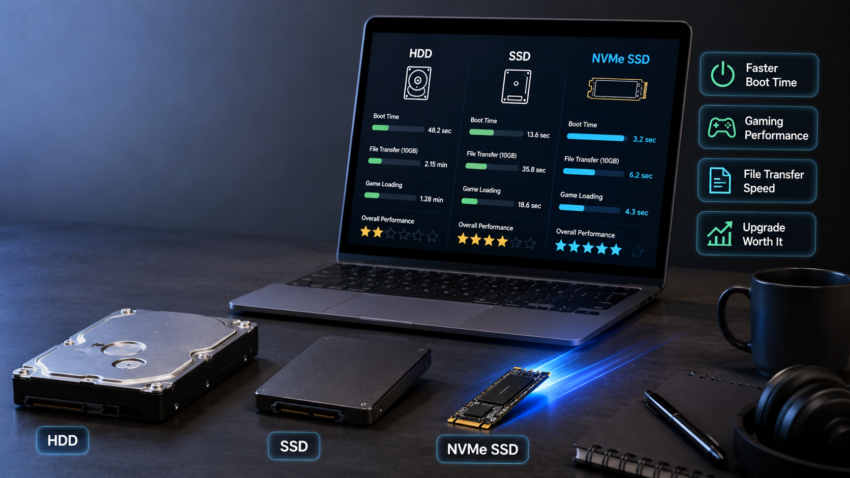
Real Speed Test Comparison: HDD vs SSD vs NVMe
Numbers are useful, but what matters is what these differences feel like. Here’s a practical breakdown across common tasks:
Boot Time — Windows 11 (lower is better)
- HDD (5,400 RPM): HDD (5,400 RPM): ~75 seconds
- SATA SSD (2.5-inch): SATA SSD (2.5-inch): ~14 seconds
- NVMe SSD (PCIe 4.0): NVMe SSD (PCIe 4.0): ~9 seconds
Sequential Read Speed (higher is better)
- HDD: HDD: ~130 MB/s
- SATA SSD: SATA SSD: ~550 MB/s
- NVMe (PCIe 4.0): NVMe (PCIe 4.0): Up to 7,000 MB/s
Gaming load times
We tested load screens in a popular open-world RPG across all three drive types. HDD averaged 68 seconds per load screen. SATA SSD brought that down to 22 seconds. NVMe hit 14 seconds. If you’re gaming on an HDD, you’re essentially spending your evenings watching progress bars.
File transfer — copying a 10 GB folder
- HDD: HDD: ~90–120 seconds
- SATA SSD: SATA SSD: ~20–25 seconds
- NVMe: NVMe: ~5–8 seconds
Opening heavy software
- Adobe Premiere Pro — HDD: Adobe Premiere Pro — HDD: ~28 seconds cold launch
- Adobe Premiere Pro — SATA SSD: Adobe Premiere Pro — SATA SSD: ~9 seconds
- Adobe Premiere Pro — NVMe: Adobe Premiere Pro — NVMe: ~6 seconds
For video editing and export, NVMe’s advantage becomes clearer when you’re exporting a long 4K timeline. Tasks that take 45 minutes on an HDD can finish in 28–32 minutes on NVMe — not because of the drive alone, but because the drive is no longer the chokepoint for reading large raw files during export.
SSD vs HDD vs NVMe: Side-by-Side Comparison
| Feature | HDD | SATA SSD | NVMe SSD |
| Read Speed | ~130 MB/s | ~550 MB/s | Up to 7,000 MB/s |
| Boot Time | ~75 seconds | ~14 seconds | ~9 seconds |
| Price (500 GB) | Cheapest | Budget-friendly | Moderate |
| Storage Capacity | Up to 8 TB+ | Up to 4 TB | Up to 8 TB |
| Durability | Fragile (moving parts) | Very durable | Very durable |
| Gaming Performance | Poor | Good | Excellent |
| Battery Impact | Higher drain | Lower drain | Lowest drain |
| Noise | Audible hum/click | Silent | Silent |
| Best For | Bulk backup storage | Everyday laptops | Gaming, editing, pro use |
| Lifespan | 3–5 years (mechanical) | 5–10 years+ | 5–10 years+ |
| Multitasking | Struggles | Handles well | Handles very well |
Which Storage Should You Actually Buy?
The right answer depends on what you use your laptop for. Here’s a straightforward breakdown by user type:
Students — SATA SSD (256–512 GB)
Web browsing, Google Docs, research, and Zoom calls. You don’t need blistering speeds — you need reliability and value. A SATA SSD gives you a fast, dependable experience at the lowest cost.
Fast storage makes AI applications launch quicker and improves overall responsiveness, especially when working with large documents and creative projects. If you’re planning to use AI for studying or productivity, don’t miss our guide to the Best AI Tools for Students, covering the most useful AI platforms available today.
Gamers — NVMe SSD (1 TB minimum)
Load times, game install sizes, and asset streaming benefit directly from faster storage. Modern games regularly exceed 100 GB each. Don’t game on an HDD — it’s a genuinely painful experience in 2026.
Office Users — SATA SSD (512 GB)
Email, spreadsheets, video calls, and general productivity. A SATA SSD is plenty. NVMe offers minimal real-world benefit for this use case — the extra money is better spent elsewhere.
Video Editors / Creators — NVMe SSD (1–2 TB)
4K footage, large project files, and export speeds — NVMe is genuinely worth the extra money here. You’ll feel it when scrubbing timelines and running exports. Pair it with an external HDD for long-term archive storage.
Budget Buyers — SATA SSD (256–512 GB)
If cost is the main constraint, a SATA SSD gives you 80% of NVMe’s real-world benefits at a fraction of the price. Avoid HDD laptops entirely if possible — even a small SATA SSD will feel dramatically faster.
Storage speed is only one part of choosing a good laptop. If you’re planning to buy a new business laptop rather than upgrade an older one, we’ve shortlisted the Best Laptops for Entrepreneurs Under ₹50,000 that combine fast SSD storage with dependable performance, battery life, and portability for everyday work.
Is Upgrading from HDD to SSD Actually Worth It?
Short answer: yes, almost always — and it’s one of the most cost-effective upgrades in computing.
If you’re still unsure whether storage is your real bottleneck, check our guide on the 10 most common laptop buying mistakes — Mistake #3 is one most people don’t even realise they’re making.
If you have a laptop that’s 3–7 years old with an HDD and it still has a decent processor and sufficient RAM, replacing the drive with a SATA SSD can make it feel like a completely different machine. We tested this on a 2019 mid-range laptop running Windows 11 with 8 GB RAM:
- Boot time dropped from 82 seconds to 13 seconds
- Chrome (with 8 tabs) opened in 4 seconds instead of 22
- The fan ran less frequently because the drive wasn’t straining
- Battery life improved by roughly 45 minutes on a charge
Real-World Outcome: For a ₹2,500–₹4,000 investment (or roughly $30–$50), an old HDD laptop can gain years of usable life. That’s a significantly better value than buying a new budget laptop — which might itself come with an HDD and feel equally slow.
When upgrading might not make sense
- If your laptop is more than 10 years old and the CPU and RAM are very outdated — the SSD will help, but the other components may still limit performance significantly
- If the laptop has soldered, non-replaceable storage (common in ultra-thin machines) — check the specs before buying a drive
- If you’re on a lease or company-managed device where internal modifications aren’t allowed
For most people with a 4–8-year-old HDD laptop that still has good bones, the upgrade is a no-brainer. You don’t need a technician for most 2.5-inch SATA swaps — a Phillips screwdriver and 20 minutes is usually enough, with a bootable USB for reinstalling Windows.
Final Verdict
Don’t buy any new laptop in 2026 that comes with an HDD as the primary drive.
Whether you’re a student, a professional, or a casual user, the performance difference between an HDD and any SSD is far too significant to ignore. Spending slightly more for a SATA SSD laptop is almost always the better call — you’ll feel it immediately.
For most people buying a new laptop, an NVMe SSD is now the standard in mid-range and above machines. If you’re a creator or a serious gamer, actively look for PCIe 4.0 NVMe — the difference in your specific workflow is real and measurable.
Once you’ve sorted your storage, the next thing worth checking is RAM, here’s how much RAM your laptop actually needs in 2026.
And if you’re staring at a slow old laptop with an HDD, don’t give up on it yet. A ₹3,000 SSD upgrade could give it three to four more years of genuinely enjoyable use.
The bottom line
- HDD: HDD: External backup storage only. Not for your main drive in 2026.
- SATA SSD: SATA SSD: Excellent for everyday use, students, office work, and budget upgrades. Huge improvement over HDD.
- NVMe SSD: NVMe SSD: Best for gaming, content creation, large file workflows, and anyone who wants top performance. Worth the small premium in most mid-range+ laptops.

Harry S is a digital marketing expert with 19+ years of experience. He created Reviews-4u.com to share simple, research-backed product insights that help users make better buying decisions.