
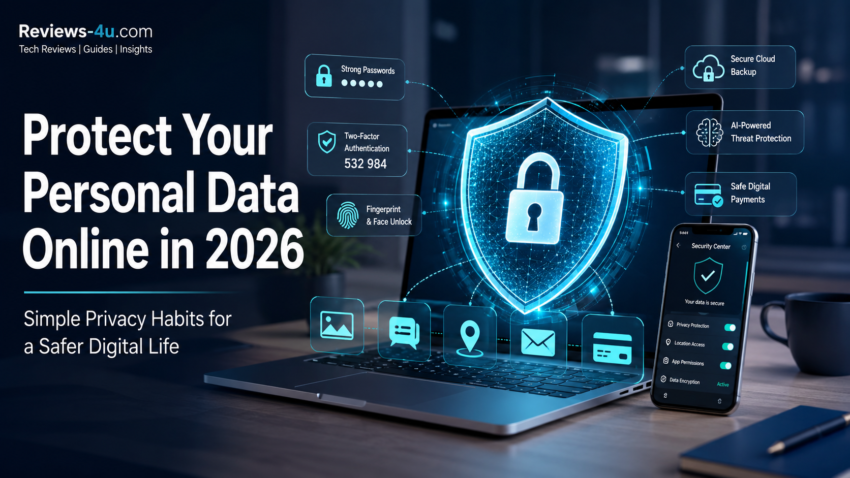
Think about everything your phone knows about you right now. Your bank balance. Where you slept last night. Who you’ve been messaging. That’s not a hypothetical; that’s just a normal Tuesday for most smartphone users in 2026.
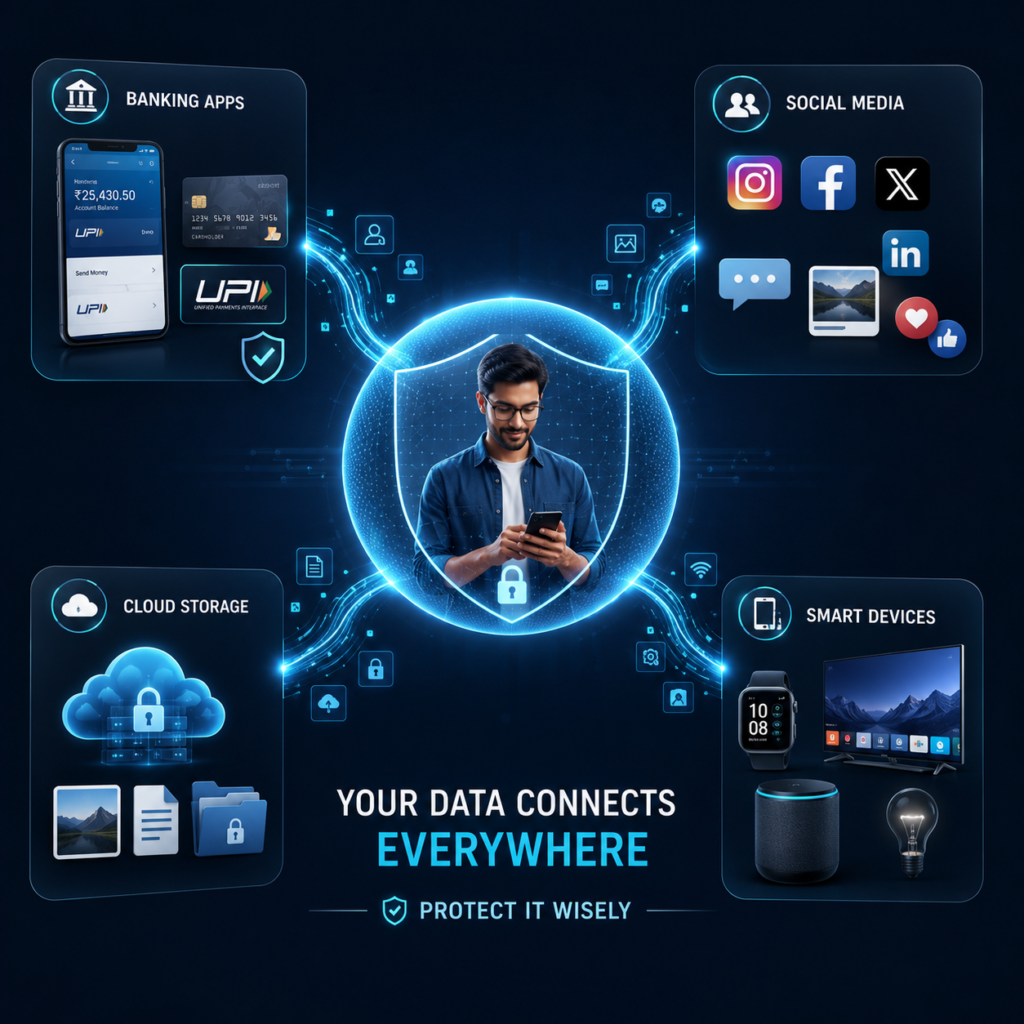
None of this is meant to scare you. It’s just the reality of connected life. Between UPI payments, cloud photo backups, and AI assistants that now read your messages to summarise them, your personal data is scattered across more places than ever before.
The good news is that protecting it doesn’t require a computer science degree. It mostly comes down to a handful of habits, the same way locking your front door doesn’t require you to understand how the lock was manufactured.
This guide walks through practical, no-jargon steps anyone can follow to protect their personal information online in 2026, whether you’re a student, a professional, or just someone who wants fewer surprises on their bank statement.
Why Protecting Your Personal Data Matters in 2026
A decade ago, “online activity” mostly meant email and some browsing. Today, it means digital payments, cloud storage, social media, smart TVs, and AI tools that all quietly collect information about you.
Every UPI payment through PhonePe or Google Pay is logged somewhere. Every photo backed up to the cloud sits on a server you’ll never see. Every smartwatch you own is, in some form, tracking.
None of this is inherently sinister; most of it exists to make apps work better. But it does mean your personal footprint is larger than most people realise, and a larger footprint means more places where something can go wrong.
A few everyday examples: a leaked email-password combination reused to break into your bank app, a fake delivery SMS that looks exactly like one from a real courier, or a stranger figuring out your home address from a geotagged Instagram photo. These aren’t rare edge cases. They happen to ordinary people every day.
Understand What Personal Data You Share Online
Before you can protect your data, it helps to know what actually counts as “personal data.” It’s more than just your Aadhaar number or bank details. Here’s what you’re likely sharing without thinking twice about it:
- Basic identity details — name, email address, phone number
- Location data — GPS tagging on photos, delivery addresses, check-ins
- Photos and videos — including anything with visible landmarks or documents in the background
- Search and browsing activity — what you look up, what you click on
- Shopping habits — items in your cart, past purchases, wishlists
- Financial details — card numbers, UPI IDs, salary information shared with apps
- Basic identity details — name, email address, phone number
- Location data — GPS tagging on photos, delivery addresses, check-ins
- Photos and videos — including anything with visible landmarks or documents in the background
- Search and browsing activity — what you look up, what you click on
- Shopping habits — items in your cart, past purchases, wishlists
- Financial details — card numbers, UPI IDs, salary information shared with apps
Each of these, on its own, might feel harmless. The risk comes from combining them. A scammer who knows your phone number, your bank name, and your city can craft a convincing fake call far more easily than one working with just your email address.
Use Strong Passwords and Password Managers to protect your personal data
Weak passwords are still one of the easiest ways accounts get compromised, even in 2026. Something like “rahul1990” or “password123” can be cracked in seconds by automated tools.
Reusing the same password across sites is just as risky. When one website suffers a data breach, and unfortunately, these happen regularly, criminals try that same email-password combination on banking apps and shopping sites. This is called credential stuffing, and it’s one of the most common ways accounts get taken over.
A strong password is long (12+ characters), avoids obvious personal details like your birth year, and is unique to each account. That’s a lot to remember on your own, which is exactly why password managers exist.
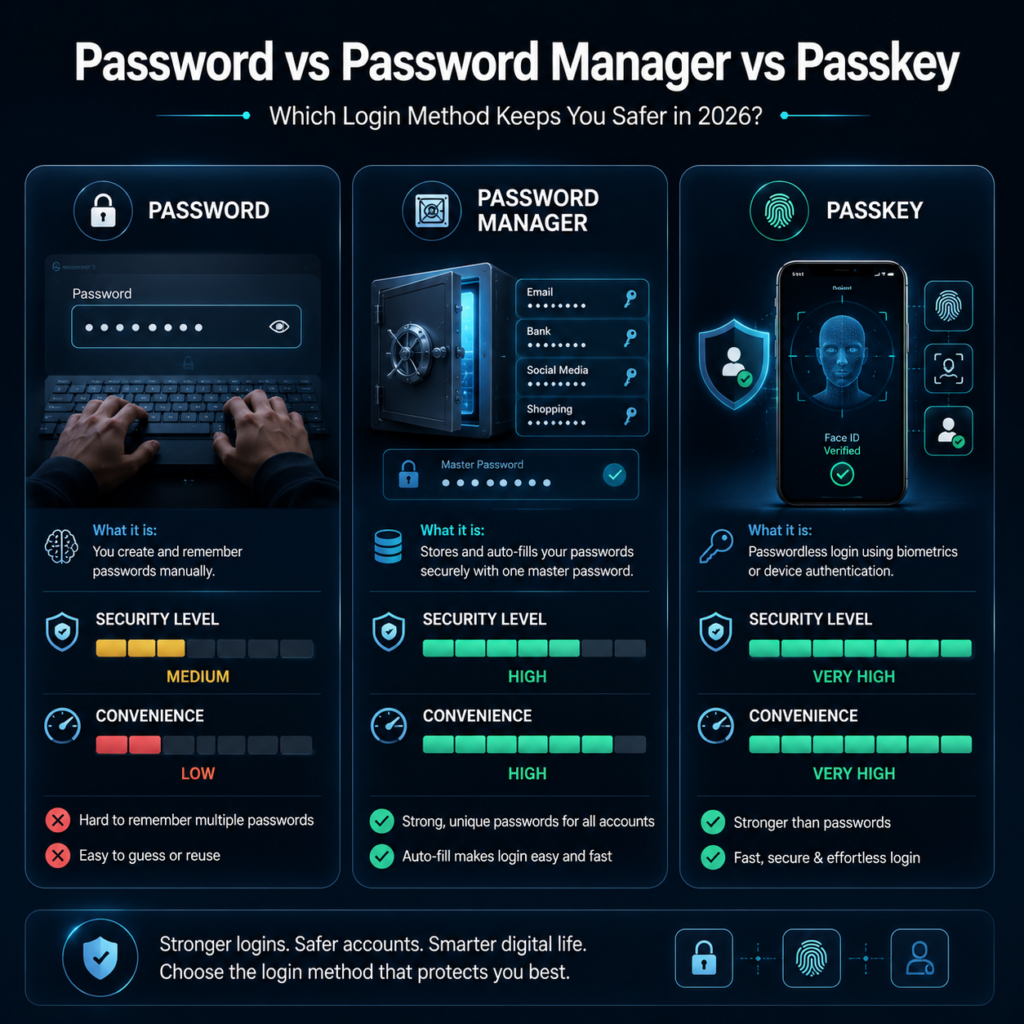
A password manager stores all your passwords in one encrypted vault, protected by a single master password. You only need to remember one strong password, and the manager fills in the rest automatically. Tools like Bitwarden, 1Password, and Google Password Manager all handle this well.
It’s also worth knowing about passkeys, a newer login method that’s becoming more common on apps and websites in 2026. Instead of typing a password, you unlock your account using your phone’s fingerprint or face scan. There’s no password for anyone to steal in the first place, which makes passkeys genuinely more secure where they’re available.
Enable Two-Factor Authentication (2FA)
Two-factor authentication, or 2FA, adds a second step to logging in. Even if someone gets your password, they can’t get into your account without also having access to your phone. Think of it as a second lock on the same door.
There are two common types:
- Authentication apps (like Google Authenticator or Authy) generate a code that changes every 30 seconds. This is the more secure option.
- SMS-based codes are easier to set up but slightly less secure, since SIM-swap fraud, though uncommon, can intercept text messages.
If you only enable 2FA on a few accounts, prioritise these first:
- Your primary email (it’s the recovery point for almost everything else)
- Banking and UPI apps
- Social media accounts
- Cloud storage accounts
Check Your Smartphone Privacy Settings
Your phone is probably the single biggest source of personal data collection in your life, which makes reviewing its privacy settings one of the highest-impact things you can do.
On both Android and iPhone, the areas worth checking regularly are:
- App permissions — does that flashlight app really need access to your contacts?
- Location access — many apps default to “always allow” instead of “only while using the app”
- Camera and microphone access — some apps request this by default, even when it’s not needed for their core function
- Background tracking — apps that continue collecting data even when closed
On Android, go to Settings > Privacy > Permission Manager to see exactly which apps have access to what. On iPhone, it’s Settings > Privacy & Security, where you can review each permission category one by one.
Make this a quarterly habit rather than a one-time fix. Apps update frequently, and permissions can quietly change or get re-requested. Modern flagship phones are also making this easier on their own; the Galaxy S26 Ultra, for instance, has an on-screen Privacy Display built into the panel that keeps your screen unreadable to anyone looking over your shoulder in public.
Modern phones are also handling more of this automatically, our guide to AI smartphone features that actually matter breaks down which on-device security tools are genuinely worth relying on.
Be Careful With Public Wi-Fi Networks
Free Wi-Fi at a café, airport, or railway station is convenient, but it’s also one of the less secure ways to get online. On an open network, it’s technically possible for someone else on that network to intercept unencrypted traffic. That doesn’t mean avoiding public Wi-Fi entirely; it means being selective about what you do on it.
Practical rules to follow:
- Avoid logging into banking apps or making UPI payments on public Wi-Fi
- Stick to your mobile data for anything involving passwords or payments
- Look for the padlock icon in your browser, confirming the site uses HTTPS, before entering any personal details
- If you frequently work from public spaces, a reputable VPN (Virtual Private Network) adds a layer of encryption between your device and the network
Think Before Installing Apps
Not every app in the Play Store or App Store is what it claims to be. Fake apps mimicking popular banking or shopping apps do slip through occasionally, especially ones promising discounts or “free” versions of paid services.
Before installing anything new:
- Check the developer name, not just the app icon and title
- Read a handful of recent reviews, not just the star rating
- Be cautious of apps requesting permissions that don’t match their purpose (a PDF reader asking for your contacts list is a red flag)
- Avoid downloading APK files from unofficial sources outside the Play Store or App Store
It’s also worth doing a periodic cleanup. Go through your installed apps every few months and remove anything you haven’t opened in the last 60–90 days. Unused apps still run background processes and hold onto your data, even when you’ve forgotten they exist.
Protect Yourself From Phishing and Online Scams
Phishing is when someone impersonates a trusted source, your bank, a courier company, or even a government department, to trick you into handing over personal details or clicking a malicious link. Common scams that circulate widely in India include:
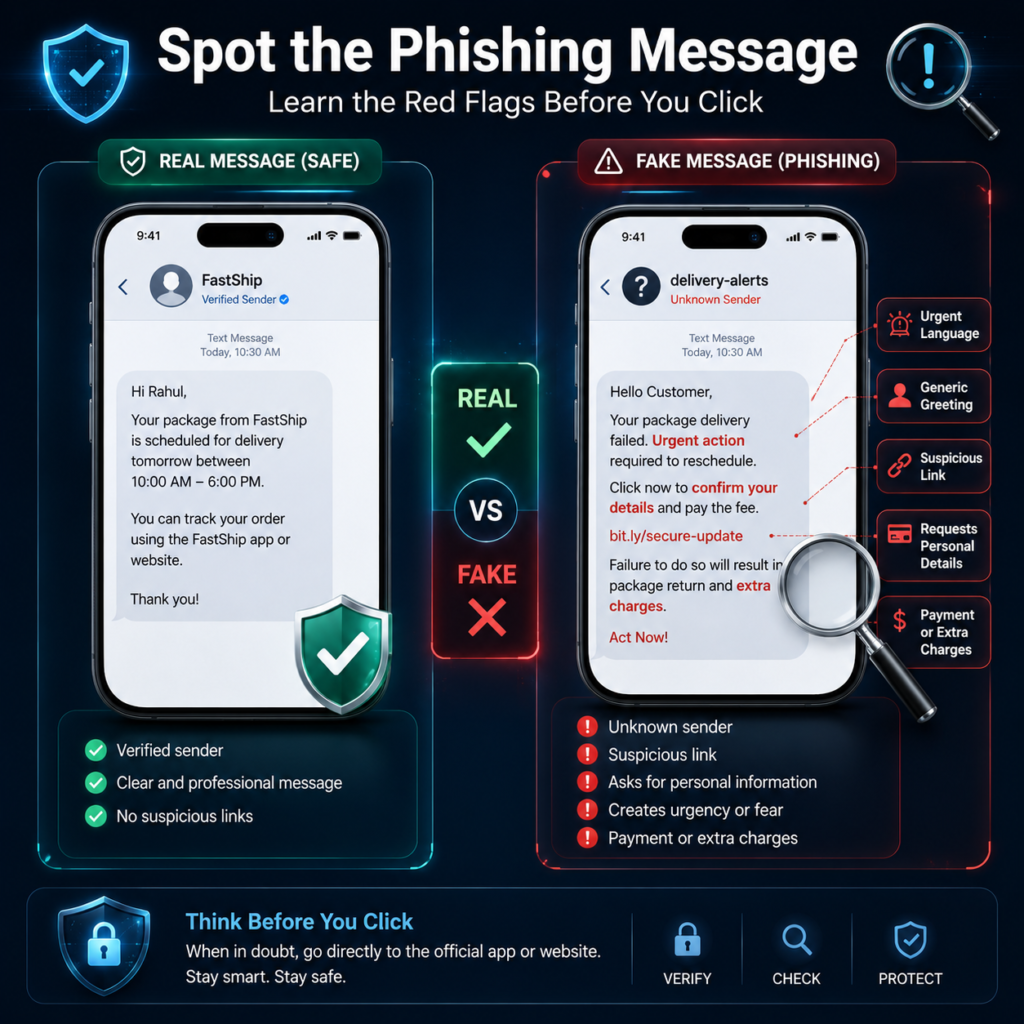
- Fake courier/customs messages — “Your parcel is held at customs, pay ₹49 to release it,” with a link that steals card details
- Banking impersonation calls — someone claiming to be from your bank’s “security team,” asking for your OTP
- Fake job or investment offers — promising unrealistic returns or asking for an upfront “registration fee”
- Suspicious links in messages — often disguised using shortened URLs
A simple rule covers most of these: no legitimate bank, courier company, or government body will ever ask for your OTP, PIN, or full card number over a call, SMS, or email. If you’re ever unsure, don’t click the link; instead, open the official app directly and check your account status there.
This is also an area where on-device AI is quietly helping. Several 2026 smartphones now include AI-based scam call detection that flags suspicious patterns in real time.
If you’re considering a flagship upgrade, our full Samsung Galaxy S26 series review covers its Knox security features and screen-level Privacy Display in more detail.
Review Your Social Media Privacy Settings
Social media platforms default to sharing more than most people realise. A quick settings review can meaningfully reduce your exposure. Things worth checking today:
- Public vs private profile — a private profile means only approved followers see your posts
- Location tagging — consider turning off automatic location tags on posts and stories
- Old posts — periodically review and remove anything that reveals your address, daily routine, or travel plans
- Friend/follow requests — be cautious accepting requests from accounts with no mutual connections or profile history
None of this means going silent on social media. It just means being intentional about what stays public versus what’s limited to people you actually know.
Keep Your Devices Updated
Software updates aren’t just about new features. Most updates include security patches that close vulnerabilities that criminals actively try to exploit.
This applies across the board:
- Phone software updates — patch known security holes
- Browser updates — Chrome, Safari, and Firefox regularly fix exploitable bugs
- App updates — outdated apps can have unpatched vulnerabilities even if your phone’s OS is current
Delaying updates for weeks or months leaves a known gap open. It’s a bit like knowing your door lock is faulty and choosing to fix it “sometime later.” Turn on automatic updates wherever possible so this becomes something you don’t have to think about.
This is also a factor worth considering if you’re buying a new laptop soon. Our guide to AI laptops in India explains how on-device AI processing is changing the privacy conversation for Copilot+ PCs.
Manage Your Digital Footprint
Beyond day-to-day habits, it’s worth periodically taking stock of your overall online presence. A few things worth doing every few months:
- Search your own name online to see what information is publicly visible
- Delete unused accounts, old forum logins, one-time shopping accounts, and apps you no longer use
- Review connected apps, many people have granted Google or Facebook login access to apps they haven’t opened in years
- Remove unnecessary personal details from profiles that don’t need them
This kind of digital cleanup doesn’t need to happen constantly. Once every few months is enough to catch anything that’s slipped through.
Personal Data Protection Checklist for 2026
A quick reference for the habits that matter most:
✔ Use unique, strong passwords for every account ✔ Set up a password manager ✔ Enable 2FA, starting with email and banking apps ✔ Review smartphone app permissions quarterly ✔ Keep your phone, browser, and apps updated ✔ Avoid sensitive transactions on public Wi-Fi ✔ Think twice before clicking links in unexpected messages ✔ Review social media privacy settings ✔ Clean up unused apps and old accounts periodically
Final Thoughts
Online privacy in 2026 isn’t about one big fix. It’s built from small, repeatable habits: a strong password here, a permission check there, a moment of hesitation before clicking a suspicious link.
None of these steps requires technical expertise, just a bit of consistency. Set aside twenty minutes every few months to run through the checklist above, and you’ll be ahead of most internet users. Your data will never be perfectly invisible, but with these habits in place, you make yourself a much harder target.
Frequently Asked Questions
1. What is the best way to protect personal data online? No single fix covers everything, but the combination that matters most is unique passwords through a password manager, two-factor authentication on key accounts, and regularly updated software. These three habits address the most common attack methods.
2. Are password managers safe to use? Yes. Reputable password managers use strong encryption, so even the company running the service can’t read your stored passwords. They’re far safer than reusing simple passwords or writing them down.
3. Is public Wi-Fi dangerous? Not inherently, but it’s less secure than your home network or mobile data. Avoid banking or payment activity while connected, and use a VPN if you often rely on public networks.
4. How often should I change my passwords? A fixed schedule matters less than making sure each password is strong and unique. Change one immediately if a service reports a breach, or if you’ve reused that password elsewhere.
5. Can someone steal my information from social media? Yes. Location tags, birthday posts, and photos with visible documents or addresses can all be pieced together by someone with bad intent. Reviewing your privacy settings and being selective about what you post significantly reduces this risk.

Harry S is a digital marketing expert with 19+ years of experience. He created Reviews-4u.com to share simple, research-backed product insights that help users make better buying decisions.