
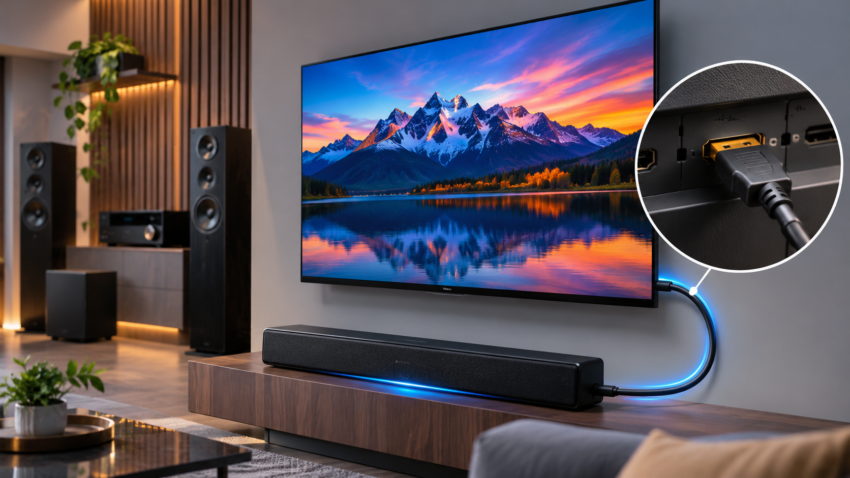
Look at the back of a recent TV and you will probably find one HDMI port marked ARC, eARC, or ARC/eARC. Soundbar manuals carry the same labels. Plug into the wrong port and you may get no sound, stereo only, or no Dolby Atmos, and the label rarely explains why.
The short answer: both let your TV send audio back to a soundbar or AV receiver over a single HDMI cable. eARC has far more bandwidth, so it can carry lossless audio that ARC cannot. For many households, ARC is enough. This guide shows where the line falls so you can match the connection to your own TV and speakers.
Quick Comparison
- ARC: roughly 1 Mbps in commonly cited figures. Handles stereo, Dolby Digital, Dolby Digital Plus (including streaming Dolby Atmos), and DTS 5.1.
- eARC: up to about 37 Mbps. Adds lossless Dolby TrueHD (including TrueHD-based Atmos), DTS-HD Master Audio, DTS:X and uncompressed multichannel audio.
- Rule of thumb: everyday TV and streaming usually works fine on ARC. Lossless audio passed through the TV needs eARC across the whole chain.
What Is HDMI ARC?
ARC stands for Audio Return Channel. It arrived with HDMI 1.4 in 2009 and solves a simple problem. Your soundbar sits on the HDMI output side, yet the sound you want to hear comes from the TV: its tuner, its built-in apps, or a device plugged into one of its other ports. ARC sends that audio back down the same HDMI cable, so you do not need a separate optical cable.
Formats ARC handles. HDMI Licensing describes ARC as suited to compressed formats common in broadcast and streaming, including Dolby Digital and DTS 5.1. Dolby Digital Plus also passes on compatible devices, which matters for Atmos, covered below. ARC cannot carry lossless audio.
ARC and HDMI CEC. CEC (Consumer Electronics Control) is a separate feature that lets connected devices control each other: one remote, shared power on/off, volume buttons that reach the soundbar. In practice, ARC is usually switched on through CEC, so turning CEC off can break ARC. Brands label it differently, such as Anynet+ on Samsung, SIMPLINK on LG, and Bravia Sync on Sony.
Where it is used. The classic setup is a TV with a soundbar or a basic AV receiver. Most people set it up once and forget it.
What Is HDMI eARC?
eARC stands for Enhanced Audio Return Channel. It works like ARC but with much more room for data. It was introduced alongside the HDMI 2.1 specification, though it is a distinct feature. Some TVs with HDMI 2.0-class video still offer eARC, so the label on the port matters more than the HDMI version printed on the box.
More bandwidth. Commonly cited figures put eARC at up to about 37 Mbps. HDMI Licensing says it supports sampling rates up to 192 kHz at 24-bit depth.
More formats. eARC can carry Dolby TrueHD, DTS-HD Master Audio, and object-based formats such as DTS:X in their high-bitrate forms, along with uncompressed 5.1 and 7.1 audio. HDMI Licensing also lists 32-channel uncompressed audio.
Better device communication. eARC adds automatic lip-sync correction. The audio device reports its own processing delay, so the TV can compensate without you adjusting a menu.
The catch. eARC is a capability, not an upgrade to the sound itself. It does not create lossless audio if the source or your soundbar does not provide and decode it.
HDMI ARC vs eARC: Key Differences
| Feature | HDMI ARC | HDMI eARC |
| Audio bandwidth | About 1 Mbps (commonly cited) | Up to about 37 Mbps |
| Formats | Stereo PCM, compressed surround | Compressed plus lossless and uncompressed |
| Dolby Digital / Digital Plus | Yes | Yes |
| Dolby Atmos | Yes, via Dolby Digital Plus | Yes, via Digital Plus and TrueHD |
| Dolby TrueHD | No | Yes |
| DTS / DTS-HD | DTS 5.1 core only | DTS-HD Master Audio and DTS:X |
| Lossless audio | No | Yes |
| Lip-sync | Usually manual delay settings | Automatic correction built in |
| Cable | HDMI cable with Ethernet; certified labels preferred | Certified HDMI cable with Ethernet or better |
| Compatibility | Wide; most TVs since the early 2010s | Newer TVs and soundbars; check port label |
In plain terms, ARC is a narrow pipe that handles the audio most people actually watch. eARC is a wide pipe built for lossless and high-bitrate sound. Both need compatible equipment at every step.
Does Dolby Atmos Require HDMI eARC?
Not always. This is the most common misunderstanding. Dolby Atmos reaches your TV in two ways, and only one needs eARC.
Atmos in Dolby Digital Plus. Streaming services deliver Atmos by adding its object data to a Dolby Digital Plus stream. It is compressed, and it can travel over ARC. If your TV passes the stream through and your soundbar decodes Atmos, you can hear it on an ARC connection.
Atmos in Dolby TrueHD. Ultra HD Blu-ray discs and some other lossless sources carry Atmos inside Dolby TrueHD, which is lossless and far bigger. Sonos, among others, states that lossless Atmos using TrueHD requires eARC. Without it, you either lose Atmos or fall back to a compressed version, depending on the devices involved.
Check every device in the chain. Dolby Atmos needs the source, the TV and the soundbar to cooperate. Some TVs convert incoming formats and output only Dolby Digital Plus. A streaming app may also offer Atmos only on certain titles. If a TrueHD source plugs straight into the soundbar or receiver’s own HDMI input, the return channel is not involved at all.
The takeaway: a soundbar that shows “Atmos” on Netflix or Prime Video can work on ARC. If you watch lossless discs through the TV, eARC is the safer route.
Which HDMI Cable Do You Need for ARC and eARC?
HDMI cable types are labelled by bandwidth:
- Standard and High Speed: older categories. HDMI Licensing says Standard and High Speed cables with Ethernet also support eARC.
- Premium High Speed: certified for configurations up to 18 Gbps.
- Ultra High Speed: certified up to 48 Gbps, the category designed for the highest video modes.
HDMI Licensing says Ultra High Speed cables are designed to support eARC, while the Ethernet-capable older types will also work. Sony’s support pages note that Standard or High Speed cables may limit high-quality audio and suggest Premium or Ultra High Speed for eARC. Sony India also advises using certified cables only.
Our view: eARC audio on its own does not automatically demand the most expensive cable. A certified Premium High Speed cable is a sensible default, and the cable bundled with a soundbar is often fine. Ultra High Speed makes more sense if the same cable carries 4K at 120 Hz or 8K video, for example when a console connects through the soundbar.
The cable is one part of the picture. Your TV port, soundbar port, and the formats each device supports all matter equally. Look for the official HDMI certification label on the packaging, and be cautious of unbranded cables with unverifiable claims.
If you are still comparing audio systems, see our guide on soundbar vs home theatre systems before you buy.
How to Connect a Soundbar Using HDMI ARC or eARC
- Check the ports. On the TV, find the HDMI port labelled ARC, eARC or ARC/eARC. A plain “HDMI” port will not return audio. On the soundbar, use the output labelled HDMI OUT (ARC) or eARC.
- Connect the cable. Plug one end into the TV’s ARC/eARC port and the other into the soundbar’s matching port. Power both on.
- Enable CEC and ARC/eARC. In the TV’s settings, switch on HDMI-CEC (Anynet+, SIMPLINK, Bravia Sync or similar) and any eARC or ARC option. Menu names differ between brands.
- Choose the audio output. In the TV’s sound settings, select the HDMI ARC/eARC output or external speaker rather than the TV’s internal speakers.
- Set digital audio output. Choose Auto or Pass-through if you want Dolby Digital Plus or Atmos to reach the soundbar. Setting it to PCM may limit you to stereo or basic surround.
- Test. Play content with surround or Atmos audio and check the soundbar’s display or indicator. If you see only stereo or Dolby Digital, review the previous two steps.
Common HDMI ARC and eARC Problems and Fixes
No sound from the soundbar.
- Confirm both ends use ARC/eARC ports, not plain HDMI.
- Check the TV’s audio output is set to the HDMI ARC/eARC option.
- Power-cycle both devices: switch off, unplug the HDMI cable, wait a minute, reconnect.
TV not detecting the soundbar.
- Turn CEC on at both devices.
- Try a different cable, ideally a certified one.
- Update TV and soundbar firmware if updates are available.
Dolby Atmos not working.
- Check the soundbar actually supports Atmos, and the app or title offers it.
- Switch digital audio output to Auto or Pass-through.
- Some TVs convert formats, so check the manual for passthrough limits.
- For TrueHD-based Atmos, confirm that eARC is supported by the TV, the soundbar, and the source.
Audio delay or lip-sync issues.
- Look for an audio delay or A/V sync setting on the TV or soundbar.
- Switch off extra processing modes on the soundbar and see if the delay changes.
- Try another input to find whether one source is the cause.
HDMI CEC problems.
- Turn CEC off and on again on both devices.
- Disconnect other HDMI devices to rule out conflicts.
- Some devices have limited CEC support, so volume buttons may only partly work.
Wrong port or cable.
- Move the cable to the labelled ARC/eARC port.
- Replace an old or damaged cable before assuming the equipment has failed.
HDMI ARC vs eARC: Which One Should You Choose?
- Basic TV and soundbar setups: ARC is enough. You gain little from eARC if you only watch broadcast TV and stream.
- OTT streaming users: ARC usually covers streaming, including Dolby Digital Plus-based Atmos. eARC adds convenience, not a transformation.
- Dolby Atmos soundbar owners: if your sources are streaming apps, ARC can deliver Atmos. If you want TrueHD-based Atmos through the TV, you need eARC.
- Blu-ray and lossless audio enthusiasts: eARC matters here, or connect the player directly to an AV receiver and bypass the return channel.
- Gaming and home theatre enthusiasts: eARC suits a receiver-based setup with higher-bitrate audio. For console gaming alone, check what your console outputs before paying extra. Keep in mind that ARC/eARC carry audio only; your picture quality is decided by the video ports and cables.
- Planning future upgrades: choosing an eARC TV and soundbar gives room to grow. If your budget is tight, an ARC setup will not hold back everyday viewing.
ARC is sufficient when your content is streaming and broadcast. eARC provides a meaningful benefit when lossless or high-bitrate audio travels through the TV to your speakers. If you are also picking a new TV, our article on choosing the right TV display technology helps with the picture side.
Frequently Asked Questions
1. Is HDMI eARC better than ARC? It is more capable, with greater bandwidth and lossless support. Whether it is better for you depends on your source, the audio format, and your equipment.
2. Can HDMI ARC support Dolby Atmos? Yes, compatible ARC connections can carry Dolby Atmos delivered through Dolby Digital Plus, which is how most streaming services deliver it. TrueHD-based Atmos needs eARC.
3. Do I need an eARC cable for Dolby Atmos? There is no special “eARC cable”. Use a certified HDMI cable with Ethernet, and read the cable section above for when Premium or Ultra High Speed is worth it.
4. Can I use an eARC soundbar with an ARC television? Usually yes, at ARC-level formats. HDMI Licensing notes eARC is not defined as backward compatible with ARC, so check both devices’ port labels and manuals.
5. Does HDMI eARC improve sound quality? Only when the source supplies lossless or high-bitrate audio and your soundbar decodes it. With ordinary streaming audio, the difference may be small.
6. Can HDMI ARC support 4K video? ARC and eARC carry audio, not your picture. Your 4K video depends on the TV, the source, and the HDMI ports and cables carrying the video.
7. How do I know whether my TV supports eARC? Check for an eARC or ARC/eARC label on the port, then confirm in the manual or official spec sheet. A plain HDMI port supports neither.
8. Is HDMI CEC the same as ARC? No. CEC handles control, such as one remote and shared power. ARC returns audio. They often work together, which is why a CEC problem can look like an ARC problem.

Harry S is a digital marketing expert with 19+ years of experience. He created Reviews-4u.com to share simple, research-backed product insights that help users make better buying decisions.