
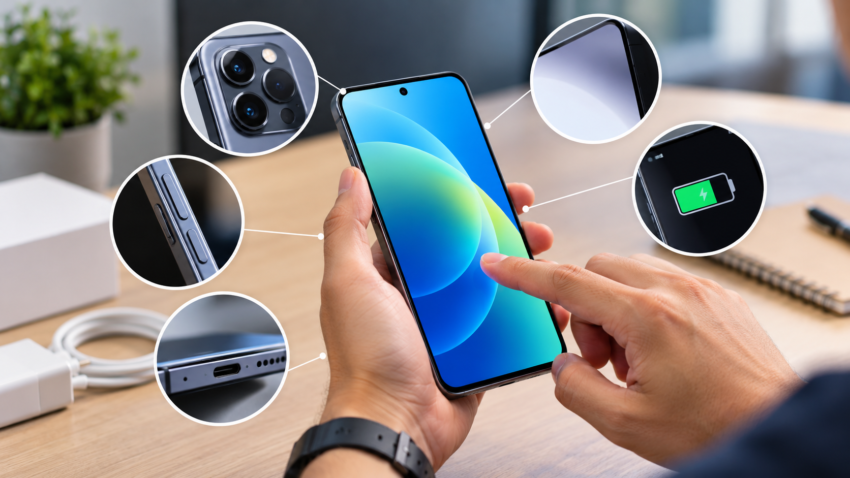
A phone can look flawless in the seller’s hand and still disappoint within a week. The screen may have a dead patch, the battery may be worn, the charging port loose, the warranty void, or the previous owner’s account still attached. Most of these problems take minutes to spot.
This guide on how to check a phone before buying gives you 15 tests to run before you pay. Not every check applies equally to new, used and refurbished phones; a table near the end shows which matter most for each. A quick inspection is a screening test, not a technician’s diagnosis.
Before You Start: What to Bring and Ask
- Ask the seller to charge the phone so it lasts through testing.
- Bring a charging cable and adapter, your own SIM card and earphones.
- Ask for the original invoice, box, warranty card and accessories, if available.
- Confirm the exact model, storage variant, purchase date and return policy.
- For a used phone, ask whether any part has been replaced or repaired.
Inspect the phone in good light and don’t rush; a seller who hurries you is telling you something.
15 Things to Check Before Buying a Phone
1. Check the IMEI Number and Device Identity
Dial *#06# to see the IMEI, or find it in Settings (About phone on Android, General > About on iPhone). Dual-SIM phones show two. Compare with the box sticker and invoice.
Then verify it on India’s official Sanchar Saathi portal: choose Know Your Mobile, or SMS KYM followed by the 15-digit IMEI to 14422. The result shows the manufacturer, brand and model registered for that IMEI, plus its status, which should match the phone in your hand.
Walk away if the IMEI is reported lost or blocked, looks invalid, or the seller won’t share it. A matching IMEI alone does not prove the phone is genuine or legally owned.
2. Inspect Battery Health and Real-World Performance
On an iPhone, open Settings > Battery > Battery Health (labelled Battery Health & Charging on newer versions) and read Maximum Capacity. If it says Apple cannot verify a genuine battery, the reading may be inaccurate.
Android has no universal battery-health screen. Google lists it under Settings > Battery > Battery health for Pixel 8a and later, but not the Pixel 8 or 8 Pro. Samsung Galaxy phones rate the battery Normal, Weak or Bad in Phone diagnostics in the Samsung Members app. Other brands vary; avoid dial codes and unverified apps.
Where there is no figure, play a video at high brightness for ten minutes and note the drop. Warning signs are fast drain, unusual heat, unexpected shutdowns, and a back panel or screen lifting at the edges (a possible swollen battery).
3. Test the Display and Touchscreen
Open a plain white image, then a dark one, and raise and lower the brightness. Look for dead pixels, colour tints, flicker, uneven brightness and cracks. On OLED screens, faint ghost images on a grey background suggest burn-in.
Then draw across the whole screen in a notes app, edges and corners included, and pinch to zoom. Subtle touch failures and burn-in rarely show on the home screen.
4. Test Every Camera
Open the front camera and each rear lens: ultra-wide, main and telephoto where present. Tap to focus on near and far objects, try portrait mode, use a few zoom levels, and record a short video while walking.
Warning signs are blurry results, spots in every photo, hunting focus, shaky footage, a cracked lens cover and camera app errors. Lenses differ in ability, so judge each against the model’s specifications; our guide to the best camera phones in India shows what current models should deliver.
5. Check the Speaker, Microphone, and Earpiece
Play music at low and high volume and listen for distortion. Record a voice note and play it back. With the seller’s permission, call your own number on both earpiece and speakerphone.
Reject muffled or very quiet audio, crackling, or a microphone the other person cannot hear clearly.
6. Inspect Buttons, Vibration, and Biometrics
Press the power and volume buttons repeatedly, and test the mute switch or action button if present. Feel the vibration motor.
Test the fingerprint reader or face unlock with your own credentials, once the seller has removed their accounts and data. Sticky buttons, weak vibration or failing biometrics justify a lower price or a pass.
7. Test Charging and Connectivity Ports
Plug in your charger. Charging should start at once and hold steady when you nudge the cable. Inspect the USB-C or Lightning port for lint, bent pins and corrosion.
Charging proves only that power reaches the battery, so also try a data transfer or an accessory. Then check Wi-Fi, Bluetooth, mobile data and a GPS lock in a maps app.
8. Look for Physical Damage and Signs of Repair
Examine the frame, corners, back panel, camera rings and SIM tray. Look for dents, uneven gaps, adhesive residue and scratched or stripped screws.
Many modern phones have no simple external liquid-damage indicator, and water resistance should never be assumed after a repair or screen replacement. Cracks matter more than scratches; see whether Gorilla Glass Victus is still enough for scratch protection.
9. Check Storage, RAM Information, and Model Variant
Read the model number and storage figure in Settings (About phone, or General > About on iPhone) and compare them with the listing and invoice. Usable storage reads a little below the advertised size because system files take up space, but a large gap or a model mismatch is a warning sign.
Storage cannot be upgraded later, so see our guide to 128GB vs 256GB vs 512GB storage before accepting a variant. Some Android phones also add virtual or extended RAM by borrowing storage, so a listed RAM figure may include it. Our explainer on how much RAM a smartphone needs covers the difference.
10. Check Software Version and Update Support
On Android, open Settings > About phone and read the Android version and security patch date (menu names vary). On iPhone, open Settings > General > Software Update.
Then check the model’s official update policy: Google publishes guaranteed update dates for each Pixel, and other brands list theirs on their support sites. Avoid phones stuck on an old patch level, with unknown firmware, or with modified-looking software.
11. Make Sure There Are No Account Locks or Activation Locks
Apple’s guidance on buying a used device says it should be erased and unlinked from the previous owner’s account first. The iPhone is ready when the first screen asks you to set it up.
On Android, ask the seller to remove their Google account (and Samsung account, on a Samsung) in Settings, then reset the phone in front of you. If setup asks you to verify a previous account, Factory Reset Protection is still active.
Do not buy a phone that asks for the previous owner’s credentials, even on a promise to fix it later. Never try to bypass the lock.
12. Verify SIM, Network, and Carrier Compatibility
With the seller’s permission, insert your own SIM, make a call, send an SMS and load a web page on mobile data.
For imported phones, compare the supported network bands on the manufacturer’s specification page with your operator’s, and ask whether the phone is carrier-locked. A working SIM does not guarantee every band or future carrier service will work.
13. Check Warranty, Invoice, and Repair History
Ask for the original GST invoice and match the model and IMEI on it. For Apple phones, enter the serial number at Apple’s coverage checker; for other brands, use the manufacturer’s support site or a service centre.
For refurbished phones, separate manufacturer warranty, seller warranty and third-party refurbisher cover, and get the terms in writing. A missing box does not prove fraud, but a bill that does not match the phone is a problem.
14. Check Whether the Phone Is Refurbished or Has Replacement Parts
A refurbished phone is not automatically defective, but know what was done to it. On iPhones running iOS 15.2 or later, Parts and Service History under Settings > General > About lists repaired parts such as the battery or display, labelled Genuine, Unknown or Used. It appears only if a part has been replaced.
No standard screen does this across Android brands. Look instead for display colour shifts, a camera that behaves differently from its specifications, non-matching accessories and gaps in repair records. Visual inspection cannot prove every part is original, so ask directly.
15. Check the Price, Seller, and Return Policy Before Paying
Compare the price with similar listings (same model, storage, age, condition). Ask for a written receipt stating the return window, refund terms and warranty cover.
For online purchases, check the seller’s reputation and the platform’s return conditions. With individual sellers, never pay in advance. Meet in a public place, pay by UPI only after every test, and keep the chat and payment record.
An unusually low price, pressure to pay immediately, no proof of ownership, or reluctance to let you test the phone are warning signs.
How to Check a Phone Before Buying: Quick Inspection Checklist
Screenshot this list and tick items off during the inspection.
- IMEI and model verified
- Battery condition checked
- Display and touchscreen tested
- Cameras tested
- Speakers and microphones tested
- Buttons and biometrics tested
- Charging port checked
- Physical damage inspected
- Storage and specifications confirmed
- Software and security updates checked
- Previous account locks removed
- SIM and connectivity tested
- Invoice and warranty checked
- Repair or refurbishment history discussed
- Price, seller and return terms confirmed
Red Flags: When You Should Walk Away
- The IMEI is reported blocked or linked to a suspicious device.
- The seller cannot legitimately remove an account or activation lock.
- The phone restarts unexpectedly, overheats abnormally or shows battery swelling.
- Important features fail during testing.
- The seller refuses reasonable inspection or proof of ownership.
- Model details do not match the listing or paperwork.
- You are pressured into an immediate, non-refundable payment.
A minor cosmetic flaw can justify a lower price. Security, ownership or battery-safety concerns should end the purchase.
New vs Used vs Refurbished Phones: What Should You Check?
Our explainer on refurbished vs used vs open-box devices covers how the labels differ. This table shows where to focus your inspection.
| Purchase type | Check first | Also check |
| New | Correct model and variant, invoice, warranty, return policy | Packaging condition. Sealed packaging alone does not prove authenticity. |
| Used | Battery, physical damage, account locks, IMEI, ownership documents | Repair history, update support, seller reputation |
| Refurbished | Refurbishment grade, replaced parts, battery condition, warranty terms, return window | IMEI, account locks, who did the refurbishing |
Refurbished phones are not automatically inferior: a well-documented unit with a solid warranty can beat a poorly described used one.
Frequently Asked Questions
How can I check whether a phone is genuine before buying?
Verify the IMEI on Sanchar Saathi, match it with the box and invoice, confirm the model in Settings, and check warranty with the manufacturer. No single test proves a phone is genuine.
How do I check a used phone’s battery health?
iPhones show Maximum Capacity under Settings > Battery > Battery Health. Pixel 8a and later and Samsung Galaxy phones have built-in tools; other Android phones vary. Otherwise, run the ten-minute video test.
How can I check a phone’s IMEI in India?
Dial *#06#, then use Sanchar Saathi’s Know Your Mobile service online or SMS KYM and the 15-digit number to 14422.
How do I know if a phone has been refurbished?
Ask the seller and check the paperwork. On iPhones, Parts and Service History lists replaced parts, and Apple community guidance says a model number starting with F marks an Apple-refurbished unit, though it is not definitive. Android has no standard method.
Should I buy a phone that is locked to the previous owner’s account?
No. A phone that asks for the previous owner’s Apple Account or Google credentials cannot be used properly. Wait until the seller removes it with their own login. Never try to bypass it.
Can I check a phone without inserting a SIM card?
Yes. Display, cameras, speakers, buttons, charging, Wi-Fi, Bluetooth and account locks need no SIM. Test calls and mobile data with your own SIM if the seller allows.
What should I check before buying a second-hand iPhone?
Check the IMEI, Activation Lock (the phone should offer a fresh setup screen), Battery Health, Parts and Service History and Apple’s coverage checker. Test Face ID or Touch ID too.
Is it safe to buy a used phone without the original box?
It can be, if the IMEI, invoice and warranty details check out. A missing box alone does not prove fraud. Be wary if the seller also has no bill.
Conclusion
Never judge a phone by its appearance alone. Knowing how to check a phone before buying comes down to four habits: test the essential functions, verify the device identity and account status, review the paperwork, and confirm the return terms before you pay.
Screenshot the checklist above for your next smartphone purchase.

Harry S is a digital marketing expert with 19+ years of experience. He created Reviews-4u.com to share simple, research-backed product insights that help users make better buying decisions.