
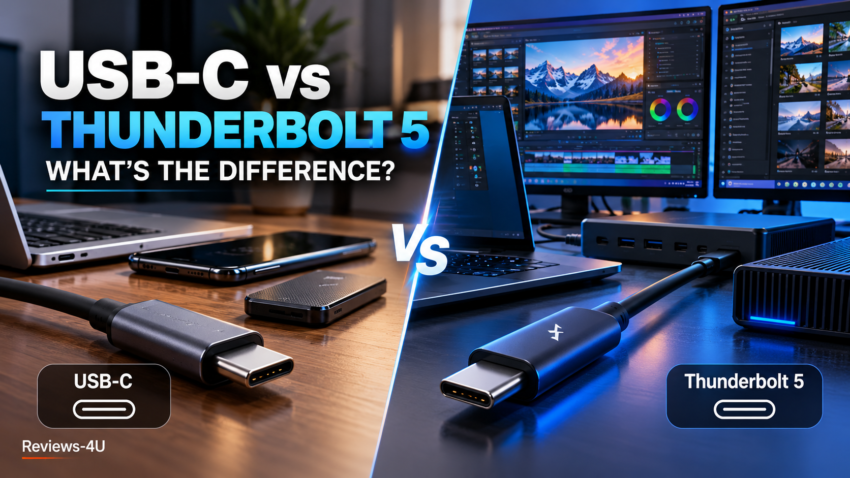
USB-C vs Thunderbolt 5 sounds like a choice between two ports, but it is really a choice between a connector shape and a performance guarantee. USB-C is the small oval plug on your phone, charger and laptop. Thunderbolt 5 is Intel’s certified standard that runs over that same plug at far higher speeds. Every Thunderbolt 5 port is a USB-C port. Most USB-C ports are not Thunderbolt 5.
That gap is where buyers lose money. Two cables can look identical, yet one only charges a phone while the other drives two monitors and a fast external SSD. This guide explains what each label actually promises, how USB4 fits in, which laptops have the newer port, and who should pay extra for it.
Quick answer: most people are well served by ordinary USB-C or a Thunderbolt 4/USB4 port. Thunderbolt 5 pays off if you own, or are buying, a laptop or Mac with Thunderbolt 5 ports and you move large files, run several high-refresh monitors, or use fast external storage.
What Is USB-C?
USB-C describes the physical connector: oval, reversible, the same shape at both ends. On its own it says nothing about speed, charging power or video. Those depend on the port, the cable and the device at each end.
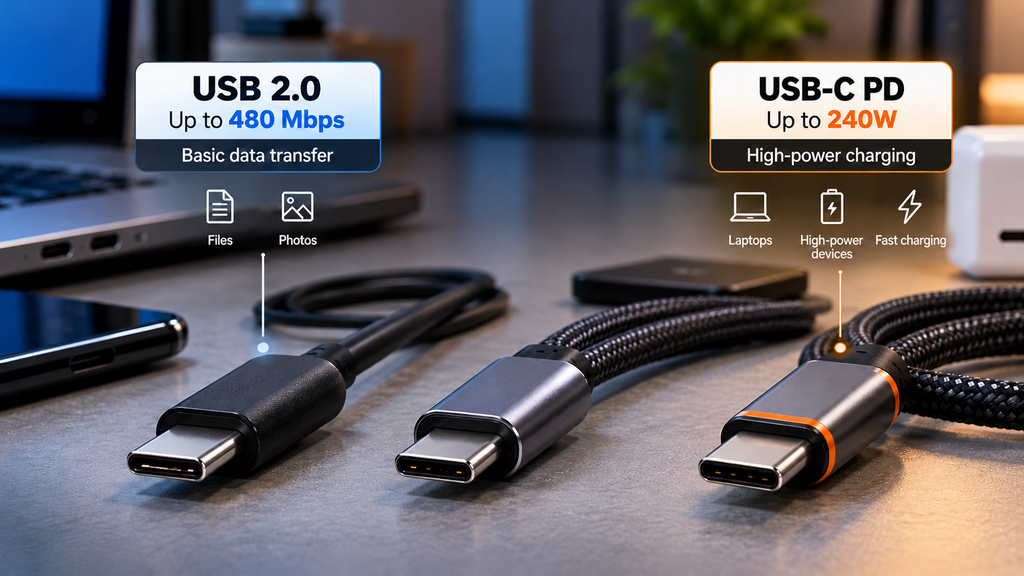
The same plug can carry very different things. Some USB-C cables are USB 2.0 only, which means 480 Mbps and, in the case of StarTech’s 240W charging cables, no video output at all. USB 3.2 over USB-C runs at 5, 10 or 20 Gbps. USB4 starts at 20 Gbps and commonly reaches 40 Gbps, with an optional 80 Gbps tier. That spread is why USB-C data transfer speed has no single answer.
Charging varies the same way. USB Power Delivery 3.1 stretches USB-C to 240W (48V at 5A), but only through cables built for it with an e-marker chip. A phone cable that works perfectly at 20W will not safely carry a gaming laptop’s load.
What Is Thunderbolt 5?
Thunderbolt 5 explained in one line: a certified, higher-minimum version of USB-C connectivity. Intel stewards the specification and validates every product that carries the name, which is why the features below are guarantees rather than options.
- Speed: 80 Gbps in each direction, double Thunderbolt 4’s 40 Gbps.
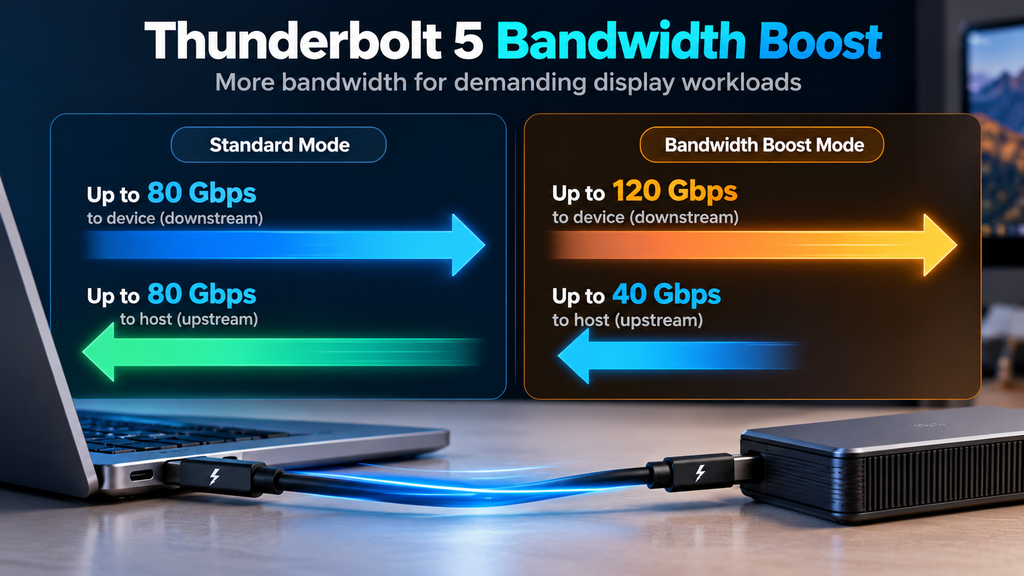
- Bandwidth Boost: when display traffic is heavy, the link switches to 120 Gbps one way and 40 Gbps back.
- PCIe data: 64 Gbps of PCIe bandwidth, against 32 Gbps on Thunderbolt 4, which matters for fast storage and external GPUs.
- Displays: Intel’s requirement is dual 6K, and the standard supports up to three 4K displays at 144 Hz or dual 8K.
- Charging: laptops must support at least 140W on one port, with up to 240W available.
- Accessory power: 15W per port, the same as Thunderbolt 4.
It is built on USB4 Version 2, DisplayPort 2.1 and PCIe Gen 4, and it stays backward compatible with Thunderbolt 4, Thunderbolt 3, USB4 and ordinary USB-C devices. Intel’s guidance puts universal Thunderbolt 5 cables at up to two metres.
Treat these as ceilings. OWC, which sells Thunderbolt 5 storage, says even a PCIe Gen 5 SSD in a Thunderbolt 5 or USB4 v2 enclosure lands around 6-7 GB/s in practice, because the link’s 64 Gbps PCIe pipe and bus overhead set the limit.
USB-C vs Thunderbolt 5: Key Differences
The table compares a standard USB-C port with Thunderbolt 4 and Thunderbolt 5. The USB-C column is a range because the connector itself guarantees nothing.
| Feature | Standard USB-C port | Thunderbolt 4 | Thunderbolt 5 |
| What it is | Connector shape; capability set by the protocol behind it | Intel-certified tier on USB-C | Intel-certified tier on USB-C |
| Data speed | 480 Mbps to 80 Gbps, depending on port and cable | 40 Gbps | 80 Gbps each way; 120 Gbps one-way boost |
| Guaranteed PCIe | None | 32 Gbps | 64 Gbps |
| Displays | Varies; some ports have no video | Two 4K at 60 Hz or one 8K | Dual 6K minimum; up to three 4K at 144 Hz or dual 8K |
| Laptop charging | Varies | At least 100W required | At least 140W required; up to 240W |
| Accessory power | Varies | 15W | 15W |
| Certification | Optional (USB-IF) | Mandatory (Intel) | Mandatory (Intel) |
The useful way to read USB-C vs Thunderbolt: USB-C tells you the plug fits, while Thunderbolt tells you how well the connection performs once it does. If a spec sheet only says “USB-C,” you still don’t know the speed, the charging wattage or whether video works.
Thunderbolt 5 vs USB4: What’s the Difference?
USB4 is the open standard from the USB Implementers Forum. USB4 Version 2.0, published in October 2022, adds the 80 Gbps tier using PAM3 signalling, and it runs over existing 40 Gbps passive cables as well as newly defined 80 Gbps cables. Thunderbolt 5 is Intel’s certified build on that USB4 v2 foundation.
The difference is what is mandatory. Basic USB4 only needs to reach 20 Gbps, with 40 Gbps and 80 Gbps as higher tiers, and accessory power can be as low as 7.5W. Thunderbolt 5 requires 80 Gbps, 64 Gbps of PCIe, dual 6K video support and 15W accessory power on every certified port.
| USB4 Version 2.0 (USB 80Gbps) | Thunderbolt 5 | |
| Who sets it | USB-IF (open standard) | Intel (licensed, certified) |
| 80 Gbps | Optional top tier | Required |
| Logo to look for | “USB 80Gbps” | Lightning bolt with a 5 |
| Where you find it | Intel, AMD and Qualcomm devices | Mainly Intel-based PCs and Apple Macs |
The trade-off is simple. A USB4 80Gbps product can cost less and may be perfectly good, but you have to confirm the logo on the box. A Thunderbolt 5 product costs more and removes the guesswork. One practical note for Windows buyers: Intel won’t certify a non-Intel chip as Thunderbolt, so AMD and Qualcomm laptops advertise USB4 instead.
USB-C vs Thunderbolt 5 for Everyday Use
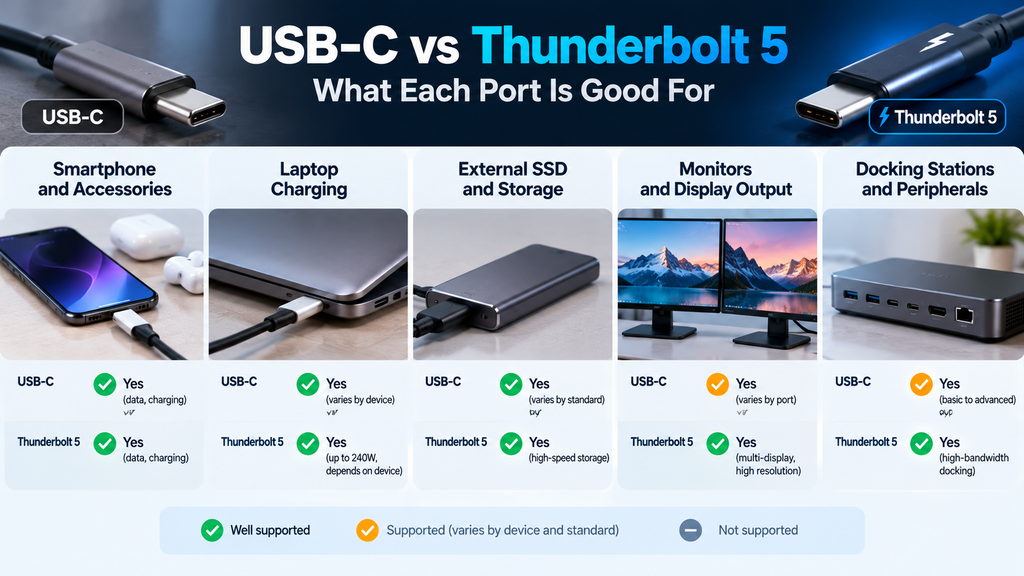
Phones and tablets. Ordinary USB-C is enough. The limit is usually the cable, not the port: our iPhone 18 Pro breakdown notes that Apple’s quoted fast-charging figures assume a 60W-capable cable and a compatible adapter.
Charging a laptop. Any Power Delivery charger at the right wattage works, and 240W needs a cable rated for it. Do not assume a Thunderbolt 5 laptop charges at 240W, though. In one 2025 hands-on roundup, most Thunderbolt 5 laptops topped out around 100-140W because of what the maker implemented.
External storage. A 10 Gbps USB-C drive has a theoretical ceiling near 1.25 GB/s. A Thunderbolt 5 enclosure can reach roughly 6-7 GB/s in OWC’s real-world figures. If NVMe versus SATA is still fuzzy, start with our SSD vs HDD vs NVMe guide. For copying a few photos, you won’t notice the difference.
Monitors. One 4K display at 60 Hz works over a USB-C port that supports DisplayPort video. Thunderbolt 5 matters when you want several high-refresh screens or a 6K/8K display from a single port.
Docks. A dock turns one cable into a full desk. Thunderbolt 5 docks cost noticeably more than Thunderbolt 4 docks, and PCWorld’s advice for 2025-26 was that many buyers are better off with a Thunderbolt 4 or USB4 dock until more laptops carry Thunderbolt 5.
Which Laptops Have Thunderbolt 5?
The honest answer is: fewer than you would expect. A Thunderbolt 5 laptop needs the port to be built in on purpose, and on Windows it generally means an extra controller chip rather than a built-in processor feature.
Apple. Apple’s specs list three Thunderbolt 5 ports (up to 120 Gb/s) on the 14-inch and 16-inch MacBook Pro with M5 Pro or M5 Max, while the base M5 14-inch has Thunderbolt 4. Apple supports up to three external displays on M5 Pro and up to four on M5 Max. If you are still deciding between Air, Pro and Neo, our MacBook buying guide matches each model to the kind of work you do. On the desktop side, our Mac mini vs Mac Studio comparison covers which of those machines carry Thunderbolt 5.
Windows. PCWorld reported that Intel’s Core Ultra Series 3 (Panther Lake) and Qualcomm’s Snapdragon X2 Elite do not include integrated Thunderbolt 5, so the port shows up mostly on expensive gaming laptops with a separate controller. Notebookcheck’s review of the 2026 Razer Blade 16 shows the pattern: one Thunderbolt 5 port next to a Thunderbolt 4 port.
AMD. Expect USB4, not Thunderbolt, as covered above.
Ports are one of the easiest specs to overlook at the shop. Our guide to common laptop buying mistakes lists port availability as Mistake #8, and it is worth reading before you pay extra for a faster one. Check the exact model and configuration on the Indian listing, because port setups can differ by variant.
How to Check What a Port or Cable Supports
- Look for the logo. Thunderbolt products show a lightning bolt, and the fifth generation carries a 5. USB-IF certified 80 Gbps products show “USB 80Gbps.”
- Check the cable’s wattage. USB-IF’s certified cable logos mark 60W and 240W ratings. Unmarked cables are a gamble for laptop charging.
- Match the weakest link. Speed, charging and video are set by the slowest of port, cable and device. A Thunderbolt 5 SSD in a Thunderbolt 4 port runs at Thunderbolt 4 speed.
- Use the cable in the box for docks and drives. It is usually the one the maker tested.
- Read the spec sheet, not the shape. If it says only “USB-C,” assume the minimum until proven otherwise.
Is Thunderbolt 5 Worth It in 2026?
Is Thunderbolt 5 worth it? It depends on what is already on your desk.
Worth it if:
- Your laptop or Mac already has Thunderbolt 5 ports and you edit video, work with large RAW or project files, or use fast external NVMe storage.
- You want three high-refresh 4K monitors, or 6K/8K displays, from one cable.
- You are buying a new Mac with a Pro or Max chip and want the accessories to last through the next upgrade.
Stay with USB-C, USB4 or Thunderbolt 4 if:
- Your laptop has Thunderbolt 4 or USB4 ports. Thunderbolt 5 accessories will connect, but only at the slower speed.
- You mostly charge devices, drive one monitor and use flash drives.
- You are on a budget. Thunderbolt 5 docks and enclosures cost more, and the ports are rare on mainstream laptops.
The bottom line on USB-C vs Thunderbolt 5 is that you should buy for the ports you actually have. Thunderbolt 5 is a real step forward on paper and in storage and display workloads, but it only helps when the laptop, cable and accessory all support it.
How We Researched This Guide
Reviews-4U has not lab-tested Thunderbolt 5 hardware for this article. Specifications come from Intel, the USB Implementers Forum and Apple. Real-world speed figures come from the vendor that measured them and are labelled as such. We have not verified Indian prices or availability for Thunderbolt 5 accessories, so we describe cost qualitatively rather than quote rupee figures.
FAQ
Is Thunderbolt 5 the same as USB-C?
No. USB-C is the connector shape. Thunderbolt 5 is a certified performance standard that uses that connector, so every Thunderbolt 5 port is USB-C, but most USB-C ports are not Thunderbolt 5.
Can I use a normal USB-C cable with Thunderbolt 5?
It will connect, but you get the cable’s capability, not Thunderbolt 5’s. For full speed, you need a certified Thunderbolt 5 cable.
Is Thunderbolt 5 backward compatible?
Yes. Thunderbolt 5 works with Thunderbolt 4, Thunderbolt 3, USB4 and standard USB-C devices, running at the older device’s speed.
Is Thunderbolt 5 faster than USB4?
Against basic USB4, yes. Against USB4 Version 2.0 at 80 Gbps, the headline speed is the same, but Thunderbolt 5 guarantees it along with PCIe, video and power minimums.
Does Thunderbolt 5 charge a laptop at 240W?
The specification allows up to 240W, but the actual figure depends on the laptop, charger and cable. Some Thunderbolt 5 laptops charge at 100-140W.
Do I need Thunderbolt 5 in 2026?
Only if your devices support it and your work involves heavy file transfers or several high-resolution monitors. For everyday use, USB-C, USB4 or Thunderbolt 4 is enough.

Harry S is a digital marketing expert with 19+ years of experience. He created Reviews-4u.com to share simple, research-backed product insights that help users make better buying decisions.